Target List
Target List, or Targets (Not to be confused with the Targets channel), is normally used in conjunction with the plugins Polar Sky and Visibility Plot to show information about celestial objects that could be observed. It allows you to load one or more files of targets and then plot them on the TGTS Channel, or show their visibility in the Visibility Plot plugin UI.
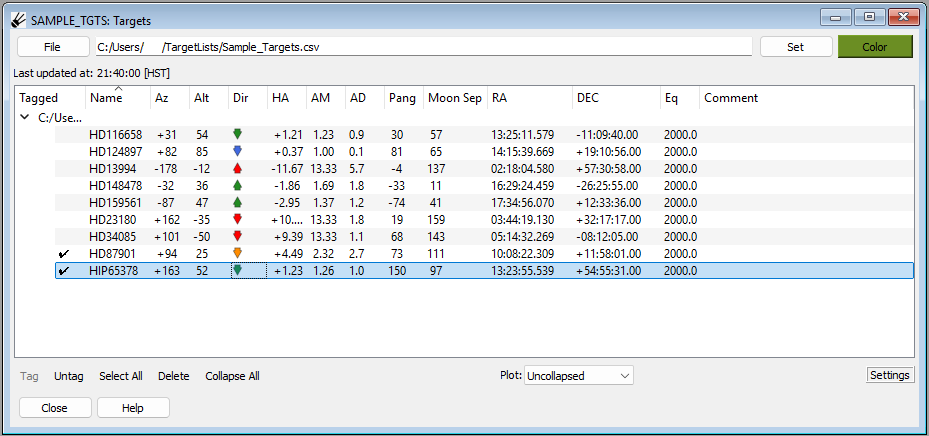
Loading targets from a CSV file
Targets can be loaded from a CSV file that contains a column header containing the column titles “Name”, “RA”, “DEC”, and “Equinox” (they do not need to be in that order). Other columns may be present but will be ignored. In this format, RA and DEC can be specified as decimal values (in which case they are interpreted as degrees) or sexigesimal notation (HH:MM:SS.SSS for RA, DD:MM:SS.SS for DEC). Equinox can be specified as e.g. J2000 or 2000.0.
Note
SPOT can also read targets from CSV files in “SOSS notation”. See the section below on loading targets from an OPE file.
If you want to set a specific color for the targets to be plotted, click the “Color” button to manually select a color before proceeding to open a file, otherwise the targets will be colored according to the option (described further below) called “Rotate target colors”.
Press the “File” button and navigate to, and select, a CSV file with the above format. Or, type the path of the file in the box next to the “File” button and press “Set” (the latter method can also be used to quickly reload a file that you have edited).
The targets should populate the table.
Loading targets from an OPE file
An OPE file is a special format of file used by Subaru Telescope. Targets in this kind of file are specified in “SOSS notation” (HHMMSS.SSS for RA, +|-DDMMSS.SS for DEC, NNNN.0 for Equinox).
Follow the instructions above for loading targets from a CSV file, but choose an OPE file instead.
Note
In order to load this format you need to have installed the optional “oscript” package: (pip install git+https://github.com/naojsoft/oscript).
Note
Sometimes an OPE file will have unreferenced targets (for example, targets that are defined but not referenced or targets in “PRM” include files that are not referenced. To add those targets to the target list, select “List unreferenced targets” from the “Settings” drop down menu.)
Loading targets from an EPH file
An ephemeris (.eph) file is a special file format for non-sidereal targets and is generated by JPL Horizons.
Follow the instructions above for loading targets from a CSV file, but choose an EPH file instead.
Note
To load this format you need to be connected to Gen2 at Subaru telescope.
Table information
The target table summarizes information about targets. There are columns for static information like target name, RA, DEC, as well as dynamically updating information for azimuth, altitude, a color-coded rise/set icon, hour angle, airmass, atmospheric dispersion, parallactic angle and moon separation.
Operation
To “tag” a target, select a target on the list by left-clicking on it and press “Tag”. A checkmark will appear on the left side under the “Tagged” column to show which targets have been tagged. To untag a target, select a tagged target on the list and press “Untag”.
On the TGTS Channel and the Visibility Plot, untagged targets will appear in the color assigned to the target file and tagged targets will appear in magenta. If a target is selected it will appear in blue, and the name will have a white background with a red border on the TGTS Channel.
The “Select All” button will select every loaded target in collapsed and uncollapsed files. Pressing “Delete” will delete every selected target from the target list. If the target was added from a file, reloading the file by pressing “Set” will restore all of the deleted targets. “Collapse All” will collapse every target file.
The drop down menu next to “Plot:” changes which targets are plotted on the TGTS Channel. Selecting “All” will show all of the targets, selecting “Tagged+Selected” will show all of the targets which have been tagged or are selected, and selecting “Selected” will show only the target which is selected. Selecting “Uncollapsed” will show all of the targets from files which have not been collapsed in the target list.